The first sign that your calendar no longer matches your working life is small: you start doing arithmetic before you accept a meeting.
Nine in the morning here. Add six. That is three in the afternoon for them, which is fine, unless they are the ones who moved last month, in which case add seven.
You will get it right most of the time. The problem is the rest of the time — the call taken at 6 a.m. because a recurring invite drifted after a daylight-saving change, or the “quick sync” proposed at what turns out to be someone’s dinner.
Google Calendar has the tools to remove that arithmetic. They are spread across three different places, and most people only ever find one of them.
This guide is about setting them up. If your question is the harder one behind it — which hour to propose when no hour suits everybody — start with how to schedule meetings across time zones.
The three questions a calendar has to answer
It helps to separate what you are actually asking, because Google solves each one differently:
| The question | Where it is answered |
|---|---|
| What does this block of my day look like for them? | A secondary time zone drawn beside the grid |
| What time is it in Lagos right now? | The world clock in the sidebar |
| What zone is this one meeting anchored to? | The time zone setting inside the event |
The first is a ruler. The second is a clock. The third is a property of a single event. Set up all three and the arithmetic mostly disappears.
Start with your primary time zone
Everything else is drawn relative to this one, so it is worth confirming before you change anything else.
- Open Google Calendar on a computer and click the gear icon in the top right.
- Choose Settings.
- In the left sidebar, click General, then Time zone.
- Under Primary time zone, search for your city and select it.
- Give it a short label —
SF,Paris,Home. You will be reading it in a narrow column.
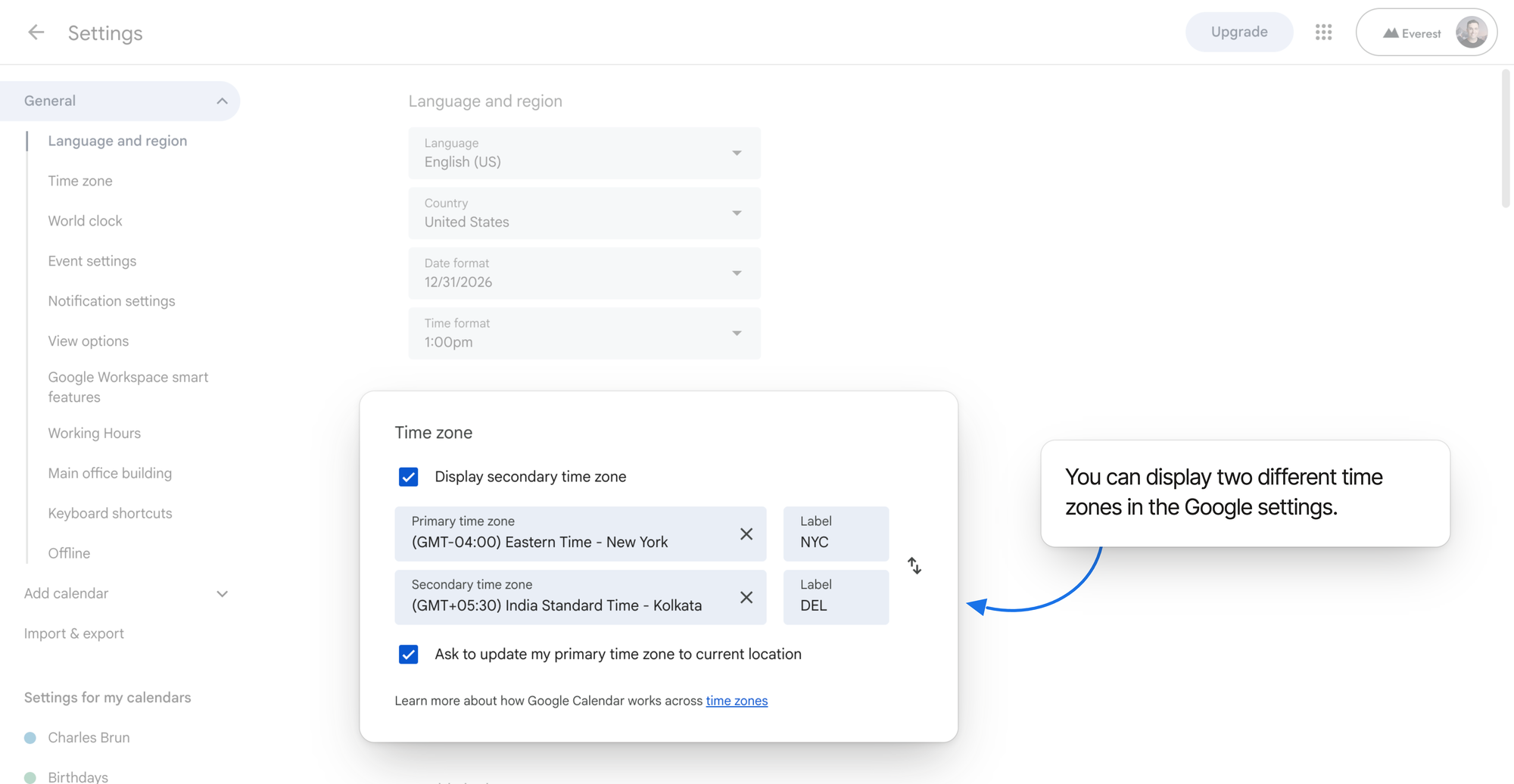
NYC and DEL — and the checkbox
underneath is what asks before following you abroad.
If your calendar has ever looked shifted by a few hours after a trip, this is usually the setting that moved.
Add a second zone beside your grid
This is the one that removes most of the mental arithmetic, because it turns another zone into something you read rather than calculate.
- In the same Time zone panel, tick Display secondary time zone.
- Search for the second city and select it.
- Label it as tightly as you labelled the first one.
- Click the back arrow to return to your calendar.
Your week now has two rulers running down the left rail. A block that starts at 09:00 in your column is visibly a 17:00 block in theirs — no conversion, just a second row of numbers.
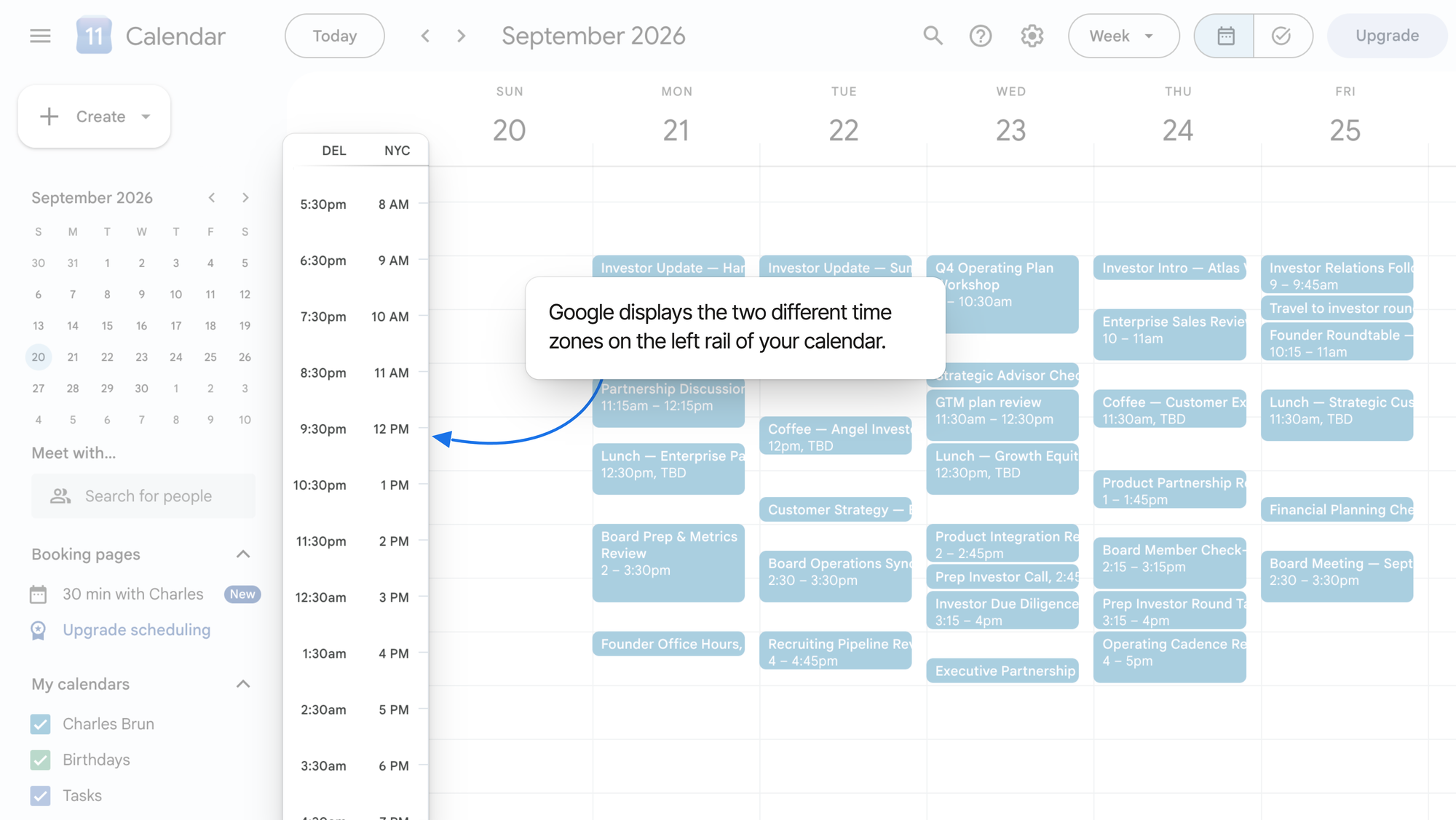
Two is the ceiling here. Google Calendar draws your primary zone and exactly one more.
Keep a world clock for everywhere else
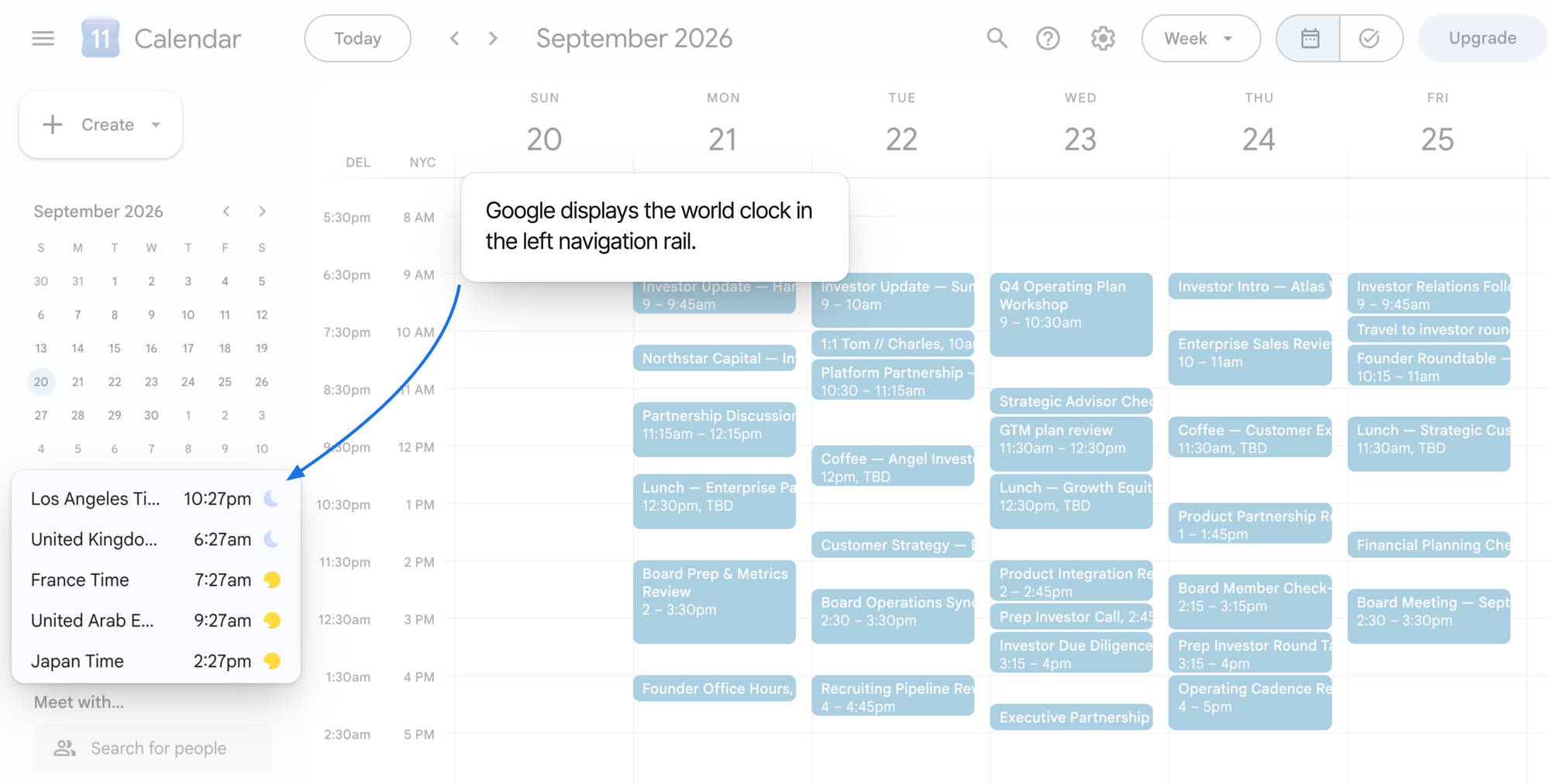
The secondary zone answers “what does this block look like for them”. The world clock answers a different question: is it a reasonable hour to message someone right now?
- Go to Settings › General › World clock.
- Tick Show world clock.
- Click Add time zone and search for each city you want to track.
Unlike the grid, this list is not capped at one extra zone — add as many cities as you actually work with. Each one shows its current time and a sun or moon, so “is it the middle of their night” is a glance rather than a calculation.
What the clocks cannot do is tell you what next Tuesday at 14:00 looks like in Singapore. They are pinned to the left rail, not to your grid — right for “can I call them now”, useless for planning.
Anchor an individual event to its own zone
Some meetings belong to a place. A market open, a standup that follows the Berlin office, a client call that must stay at 9 a.m. their time whatever happens to your own schedule.
- Click Create, or click an empty slot and choose More options.
- Click the time zone link next to the event’s start time.
- Search for the city the meeting belongs to and select it.
- If the event starts in one zone and ends in another — a flight, most obviously — turn on separate start and end zones.
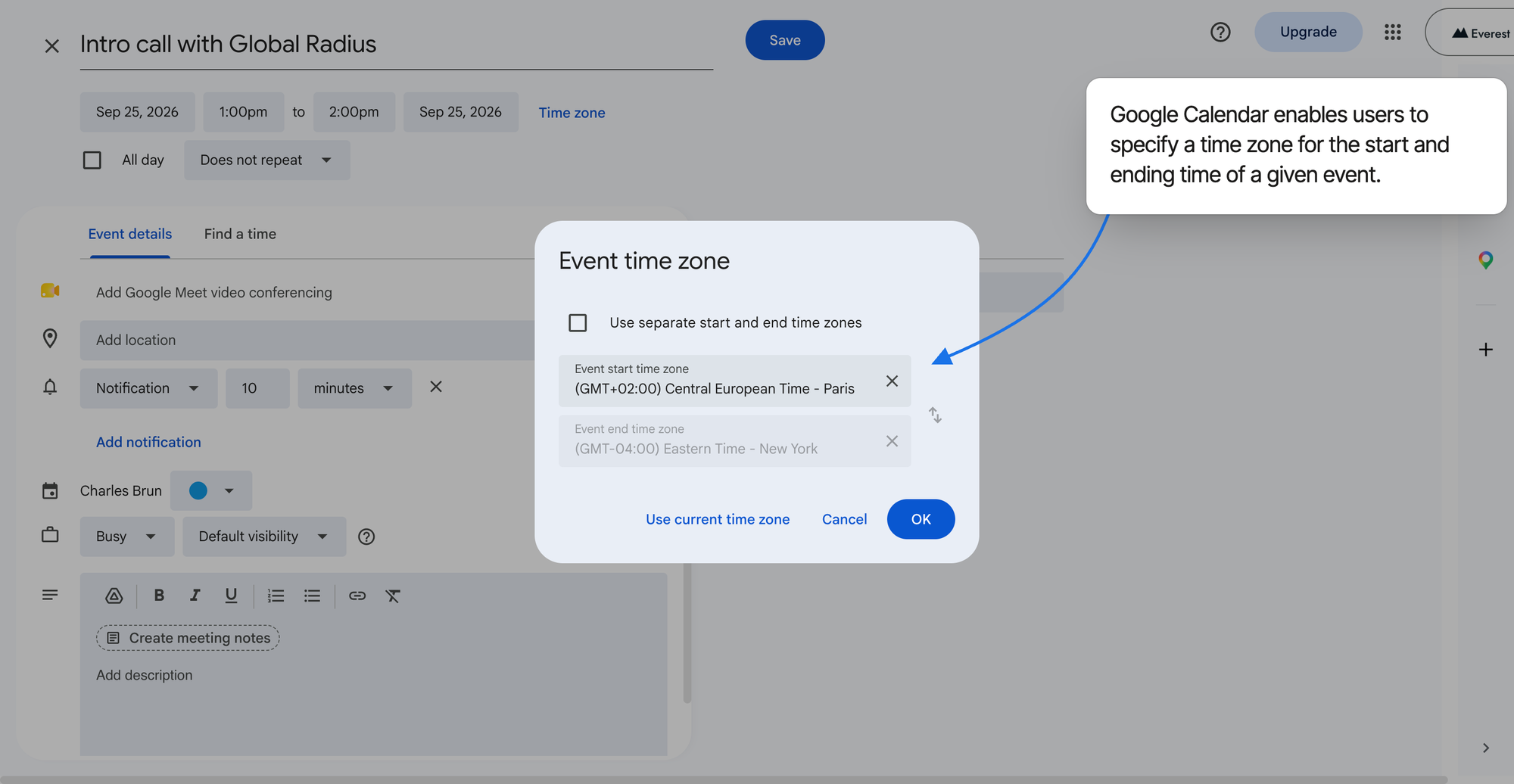
This matters most for recurring meetings. An event anchored to a zone follows that zone’s daylight-saving rules, so a weekly call stays at 9 a.m. for the people it was scheduled around instead of quietly sliding an hour twice a year.
Let the guest list do the arithmetic
Once other people are involved, stop guessing at their availability and let Google show it.
- Open the event in the full editor (More options).
- Add your guests’ email addresses.
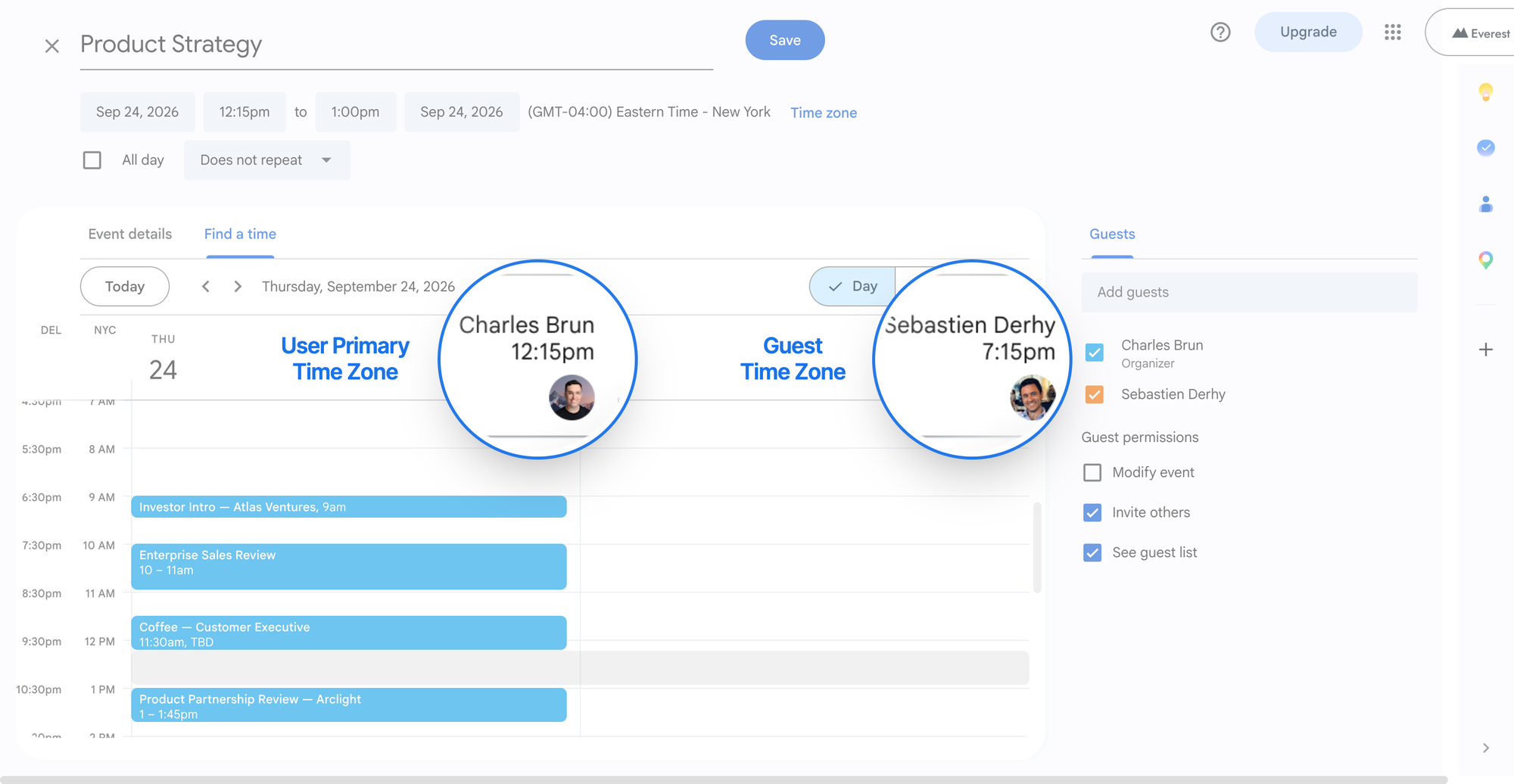
- Open the Find a time tab.
Each guest’s day is drawn in their own zone, with their working hours marked. You are choosing a slot from a picture rather than proposing a time and waiting to learn it was 7 p.m. for someone.
Which slots you are willing to offer at all is a separate decision — and worth making deliberately, because a call placed to suit another zone can quietly cut your own morning in half. That trade-off is the subject of maker’s schedule vs. manager’s schedule.
What to do when you travel
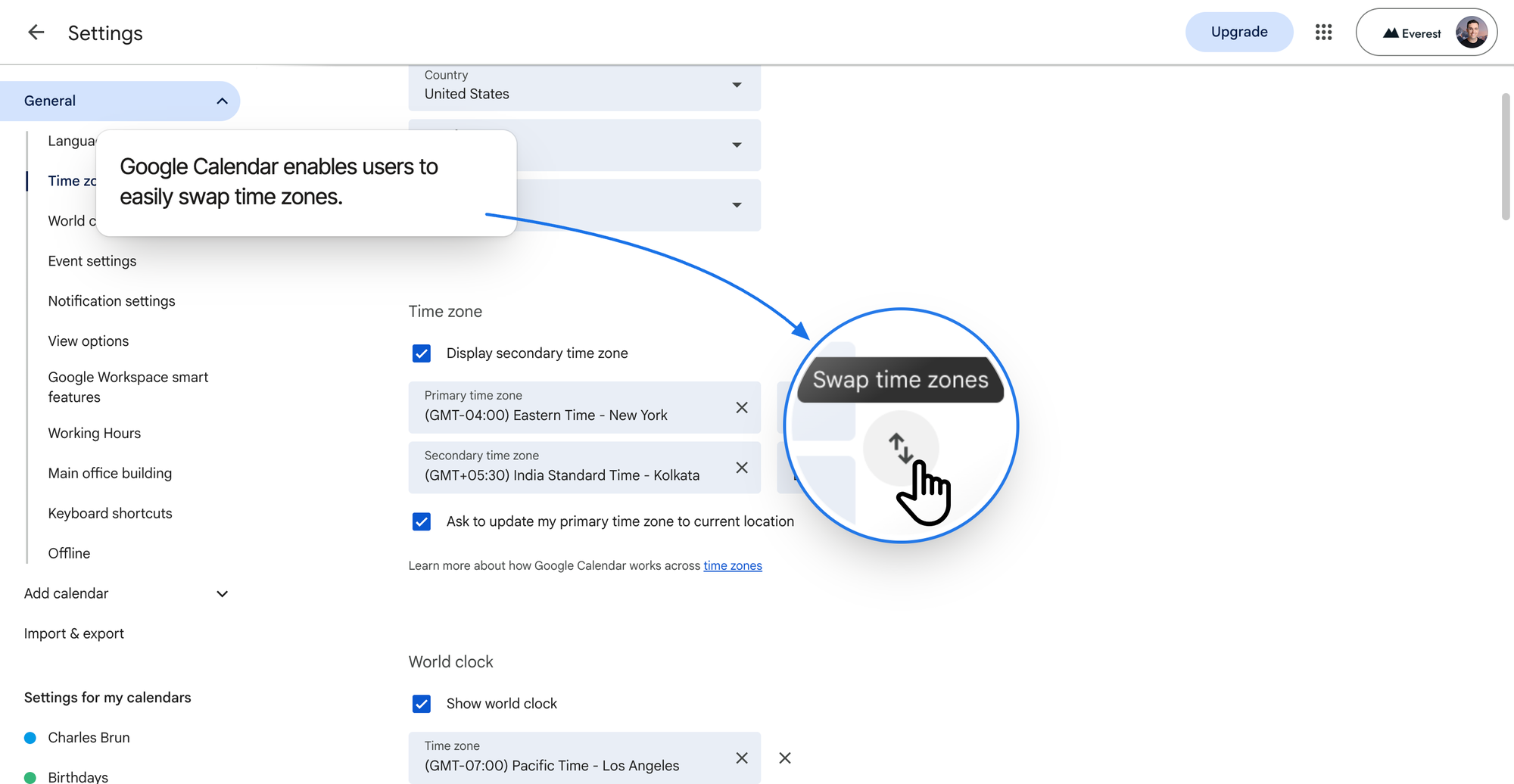
Google Calendar will not move your calendar under you without asking. In the same Time zone panel, Ask to update my primary time zone to current location decides what happens when you land somewhere else: leave it ticked and you get a prompt, untick it and your calendar stays exactly where you put it.
Two habits make the rest of it easy:
- Use the swap arrow. The small arrow between the two zone fields exchanges your primary and secondary zones. Landing in the zone you already track as secondary makes the switch one click.
- Decide before you fly, not after. If you want your calendar to stay on home time for a short trip, decline the prompt and read the secondary column. If you are staying long enough to work local hours, swap properly so new events are created in the right zone.
When the times still look wrong
| What you see | Why | What to do |
|---|---|---|
| An event sits an hour or two off | It was created in, or anchored to, another zone | Open the event and read the zone label next to the time |
| No second ruler on the grid | The secondary zone is off, or was never set | Settings › General › Time zone › Display secondary time zone |
| The world clock is missing | Not enabled, or the window is too narrow to draw the sidebar | Enable it under World clock and widen the browser window |
| A guest says they see a different time | They are in another zone, and Google converted for them | Nothing — this is the system working. Confirm in Find a time |
| Everything shifted after a trip | The “update my primary time zone” prompt was accepted, here or on your phone | Settings › Time zone, set your primary zone back — or untick the prompt |
| A recurring call drifted by an hour in spring | The series is anchored to a zone whose clocks changed | Reopen the series and set the zone it should actually follow |
Habits that prevent the mistakes
- Label zones like a human.
NYCreads faster thanEastern Time (US & Canada)in a narrow column, and speed is the entire point. - Anchor recurring meetings to a place. Standing meetings survive daylight saving only if they are tied to the zone the people are in. They are also the fixed points the rest of your week gets built around — see planning your week and managing your calendar.
- Check
Find a timebefore you propose. One glance is cheaper than a round of email. - Collect availability first for anything above four people. Manual comparison stops working before the group does.
- Write the zone in the invite title when it matters.
Board prep (9:00 CET)costs nothing and removes all doubt at a glance.
When two zones are not enough
The setup above works well for one relationship — you and one other place. It starts to strain when your week has three.
A founder with engineering in Warsaw, a design partner in Lisbon and investors in New York cannot put all three beside the grid. You get one secondary column and a sidebar of clocks that are not aligned to anything, so the third zone goes back to being arithmetic.
That gap is what pushed us to build the time zone display in Everest
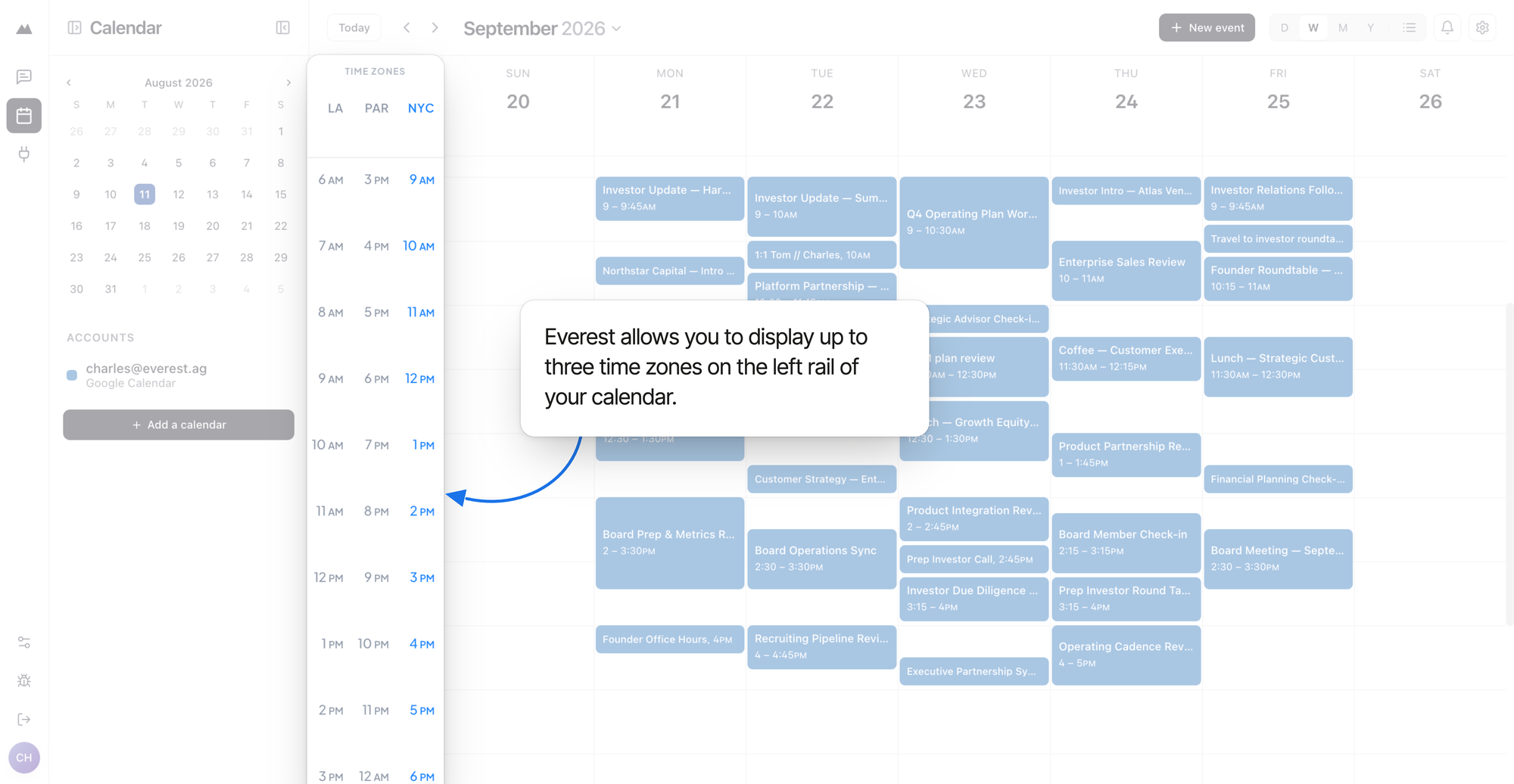
differently. Everest puts your main zone plus two more on the left rail
as full columns, so three zones read across the same hour rows rather
than living in separate widgets. You pick each one by searching for a
city, and each column carries a short label — LA,
PAR, NYC, or whatever you type — so a narrow
strip stays legible. Your main zone stays highlighted, because that is
the one new events are created in.
Two other things follow from that design:
- One grid, every account. Everest reads your connected Google and Outlook calendars into a single view, so the zone columns sit beside all of your commitments rather than one account’s.
- Travel is an offer, not a surprise. When your device moves to another zone, Everest asks whether to switch your main zone instead of silently redrawing your week. Decline it and it stays quiet for a week.
If Google Calendar’s second zone covers your working life, use it — it is free, it is already there, and the setup above takes five minutes. If you spend your week reading across three places at once, you should not have to keep the third one in your head.